
Setup Schedule
The Panasonic Comfort Cloud App's Schedule feature allows you to schedule your device's operating mode, and it will automatically activate based on your selected day of the week and time. Integrate this scheduling into your daily routine to achieve better comfort and efficiency.
1.0 Setup Air Conditioner Weekly Schedule Manually
Step 1
Tap "Schedule" tab.
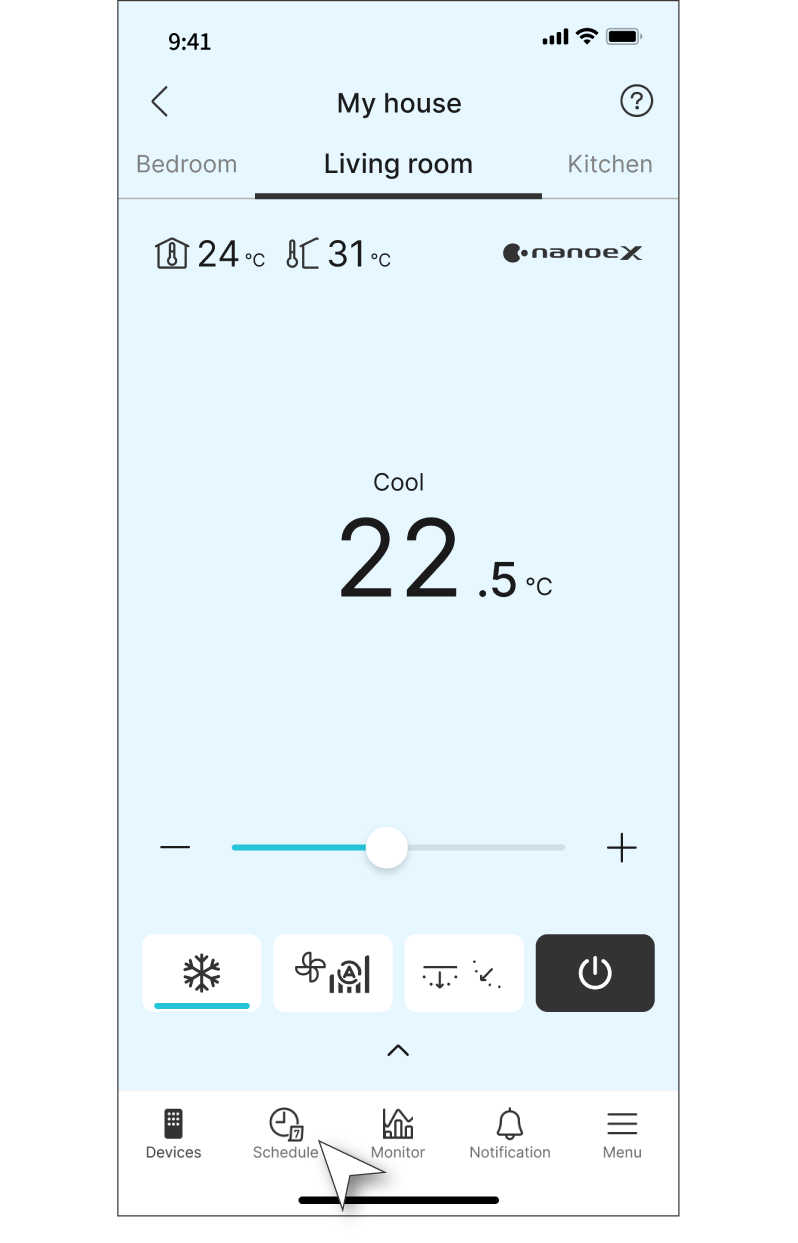
Step 2
Tap “Edit”.
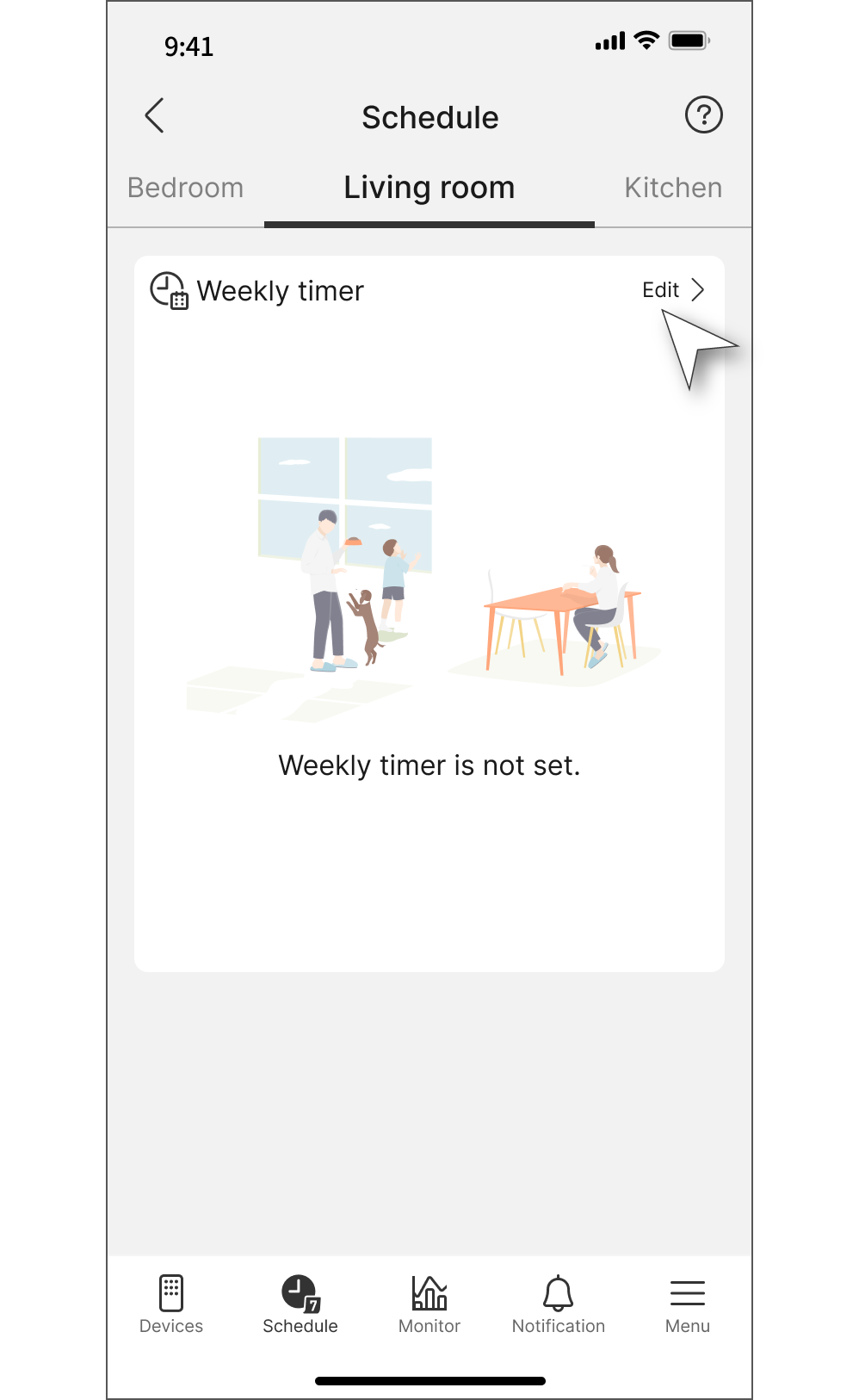
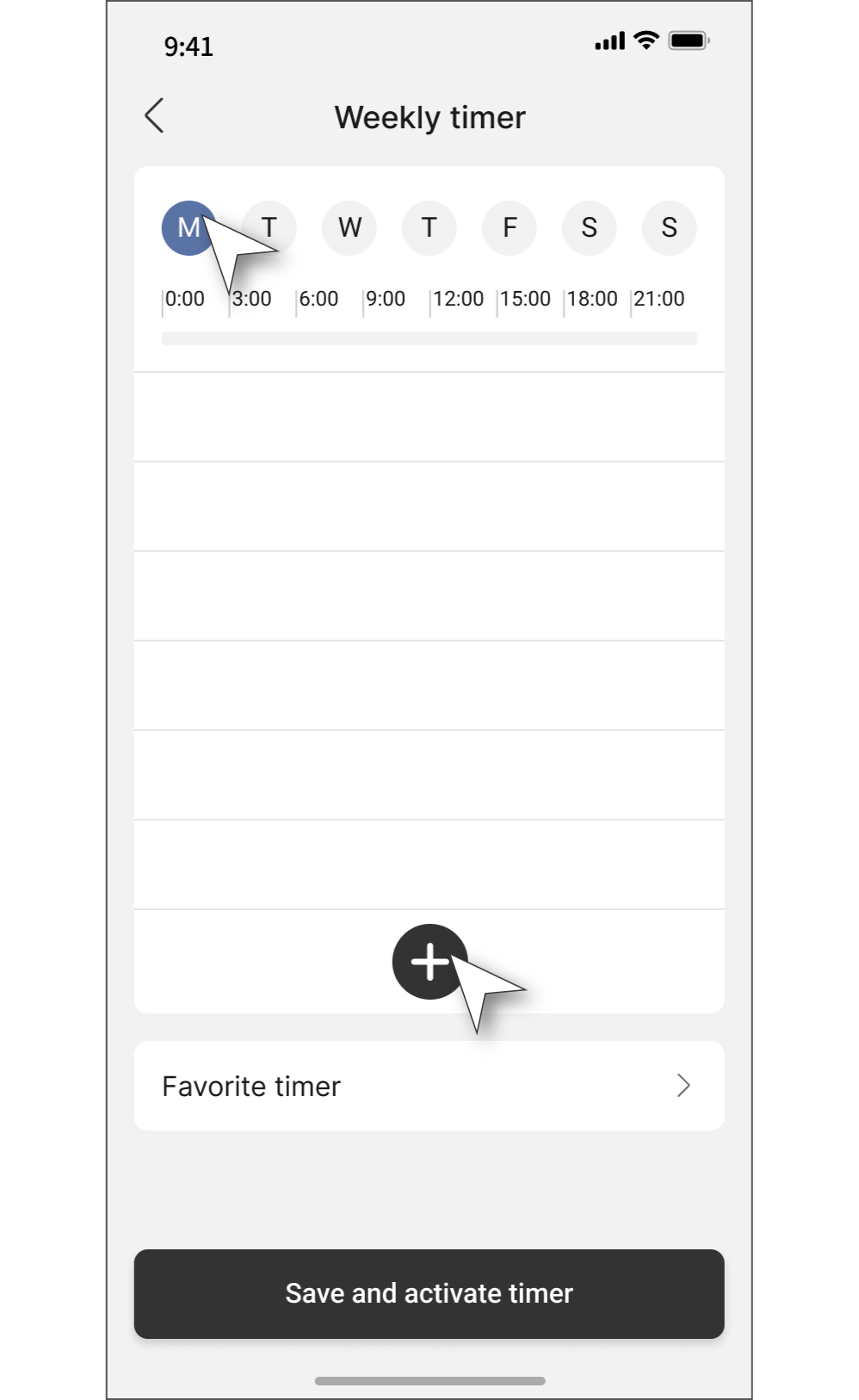
Step 3
Select the day of the week you want to set the timer for, then tap the “+” button.
You can also copy the timer to a different day of the week later, using the same time slot.
Step 4

After completing all below settings, tap “OK”.
a. The day(s) to set the same schedule (multiple selections allowed).
b. Set the start and end time for air conditioner control.
c. Power setting: Turn ON to start operation, and OFF to stop.
d. Operation settings
・Temperature
・Operation mode
・Fan speed
・Wind direction
e. Additional features
・nanoe: ON / OFF
・Powerful mode: ON / OFF
・Quiet mode: ON / OFF
・ECO mode: ON / OFF
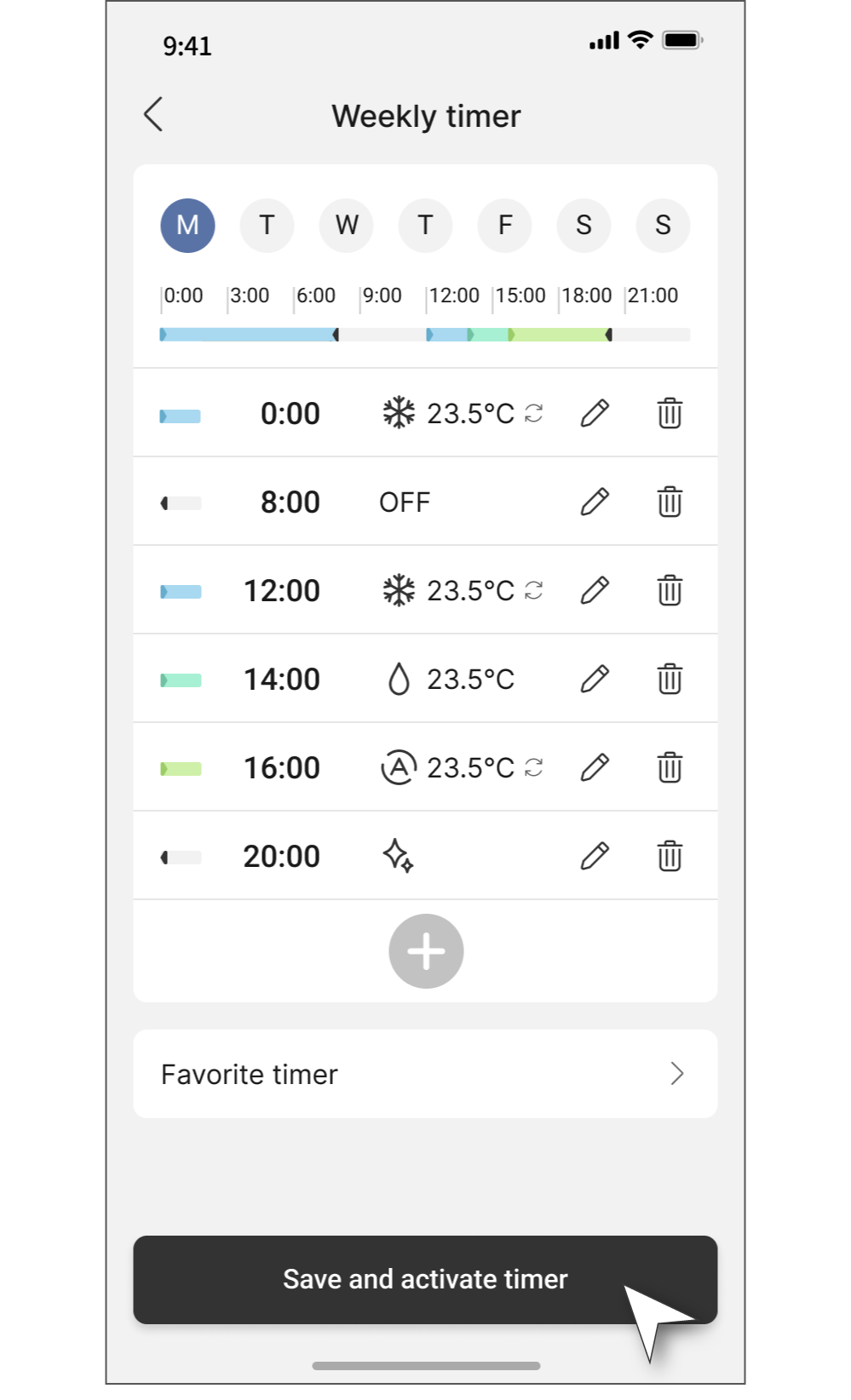
Step 5
You can set up to six timers for each day of the week.
Once the setup is complete, please press “Save and activate timer".
1.1 Setup Air Conditioner Weekly Schedule with Favorite Timer
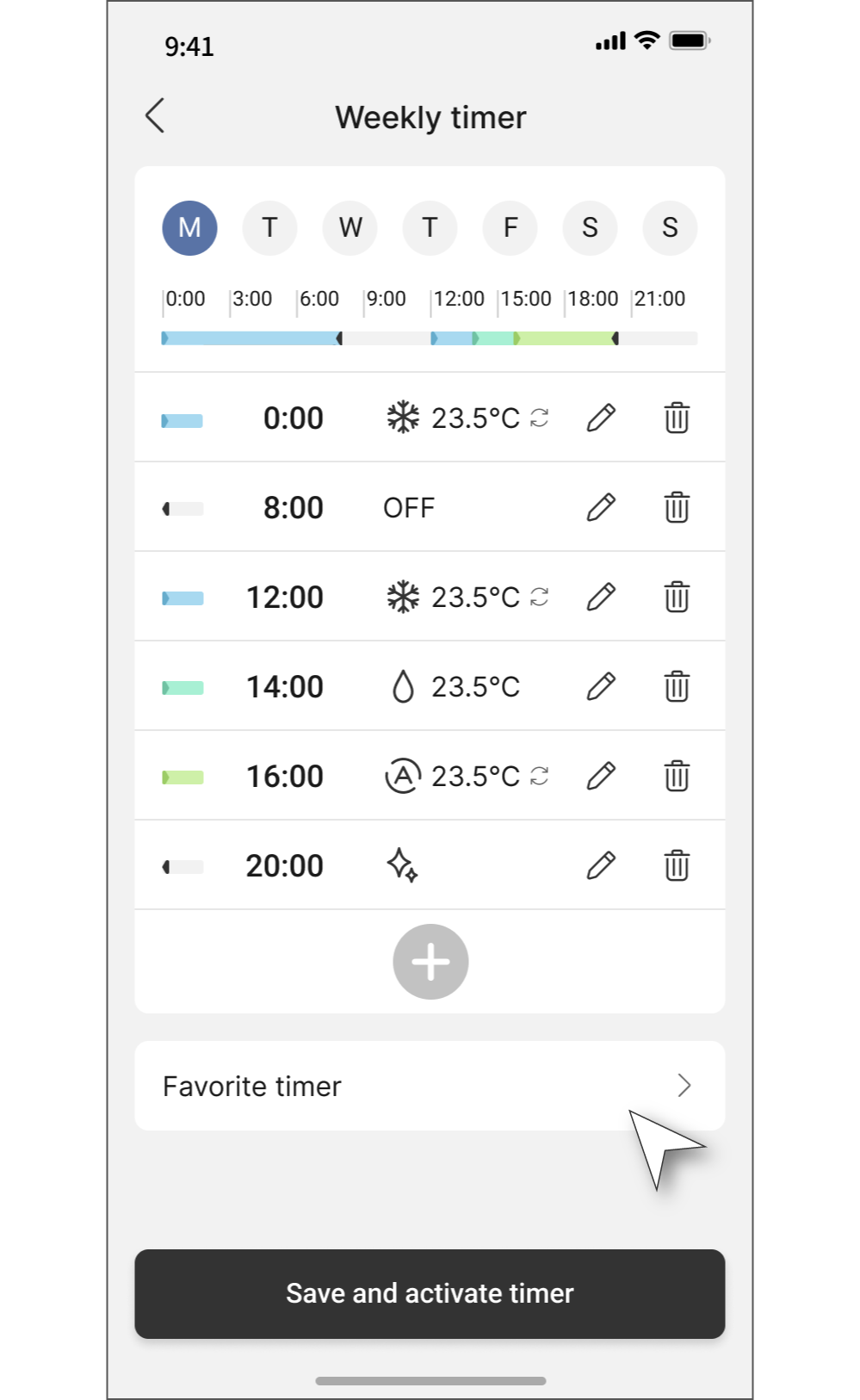
You can save your weekly timer settings as a 'Favorite timer' to easily reuse them whenever needed.
Step 1
Open the timer setting you want to save, then tap the “Favorite Timer”.
Step 2
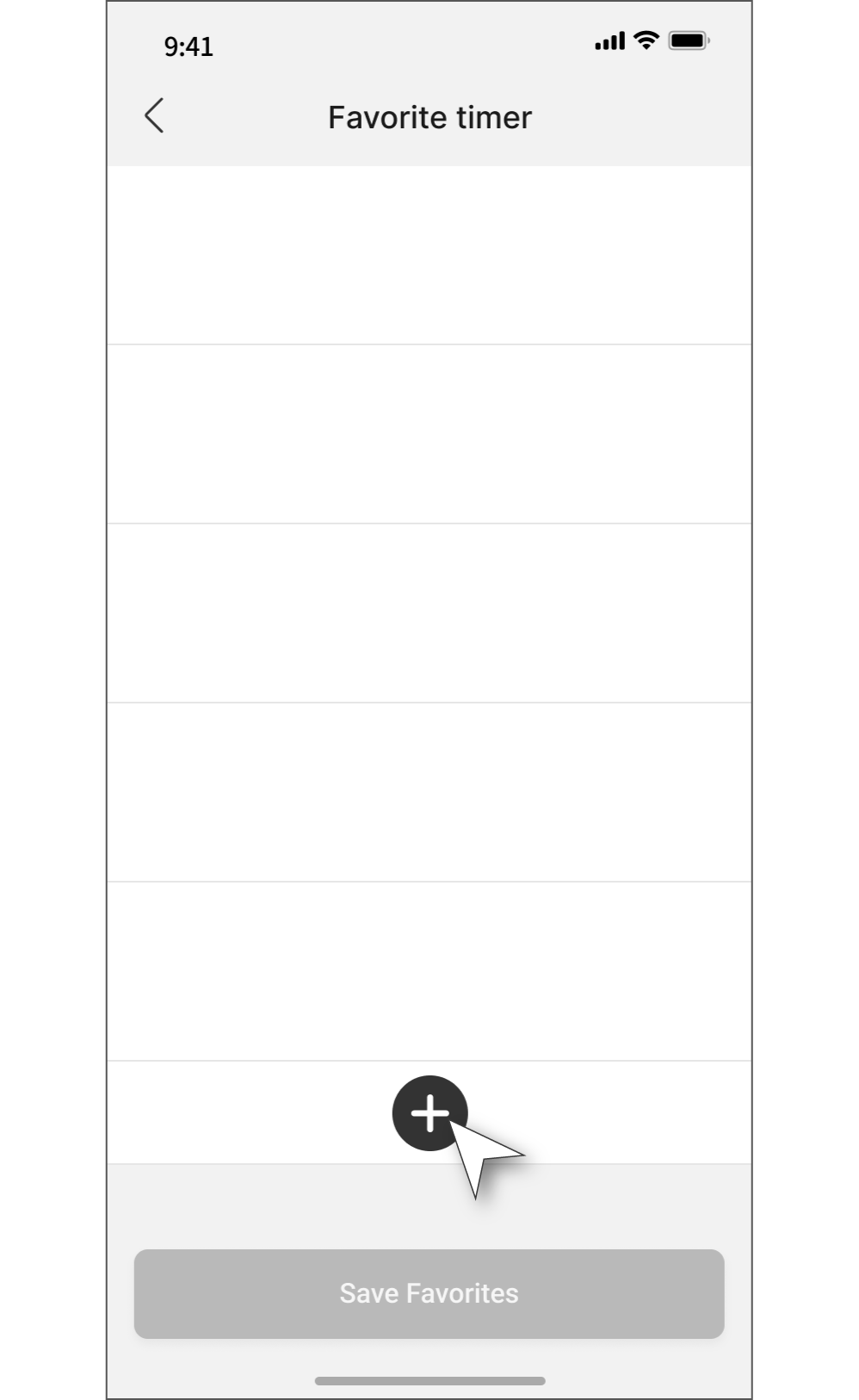
Tap “+”.
Step 3
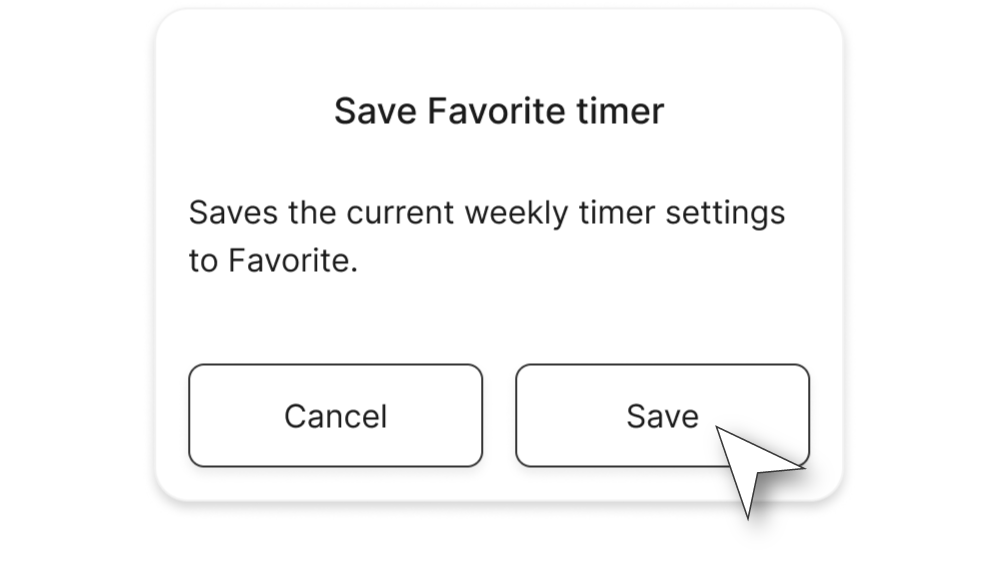
Tap “Save”..
Step 4
Enter a name for the timer and tap “Save Favorites”.

Step 5
You can register up to five favorite timers.
If you want to apply the favorite setting to the weekly timer, tap “Apply to the weekly timer” button.

Step 6
Tap “OK”.

1.2 Setup Air Conditioner Single-Use Off Timer
Step 1
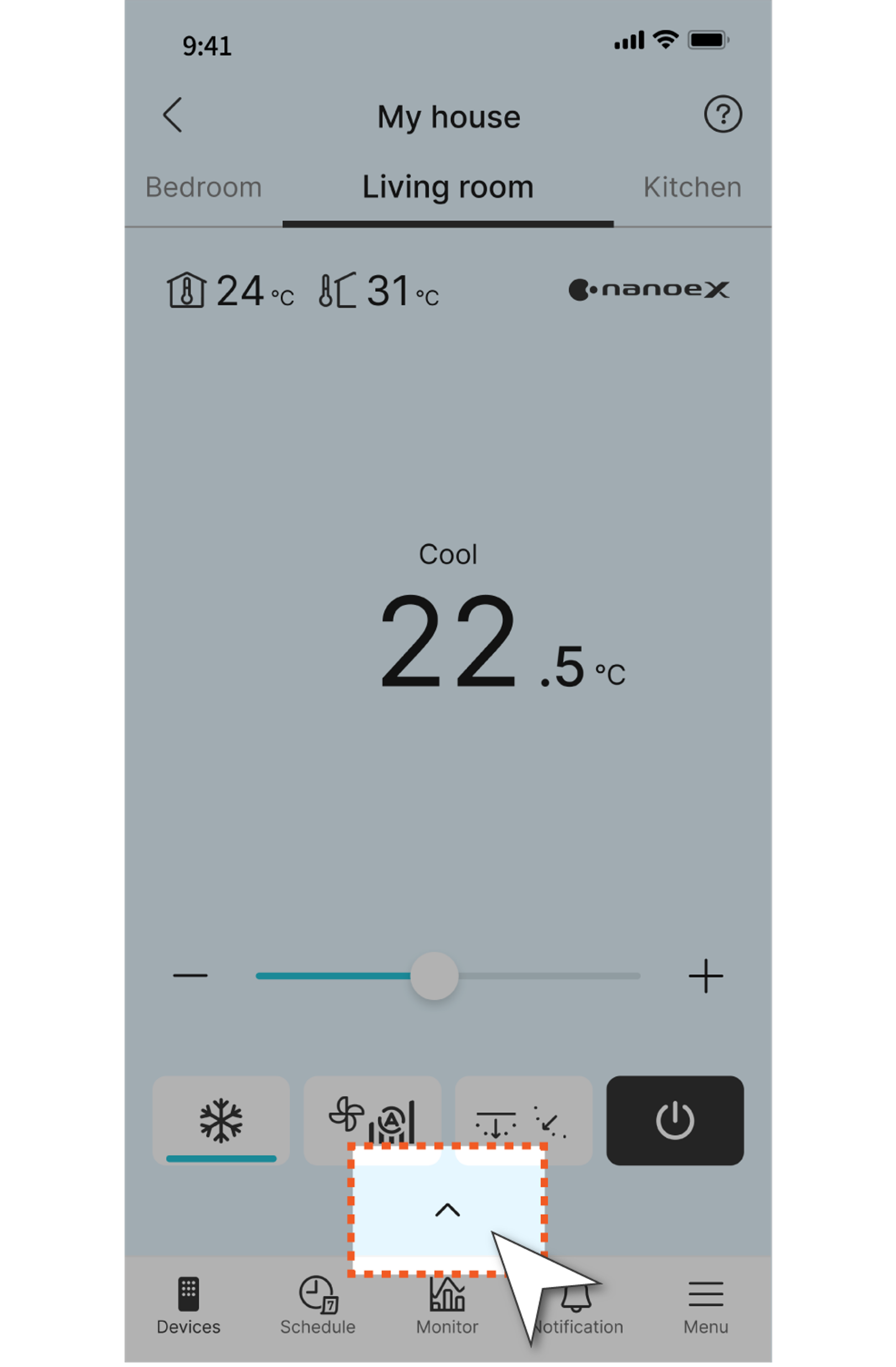
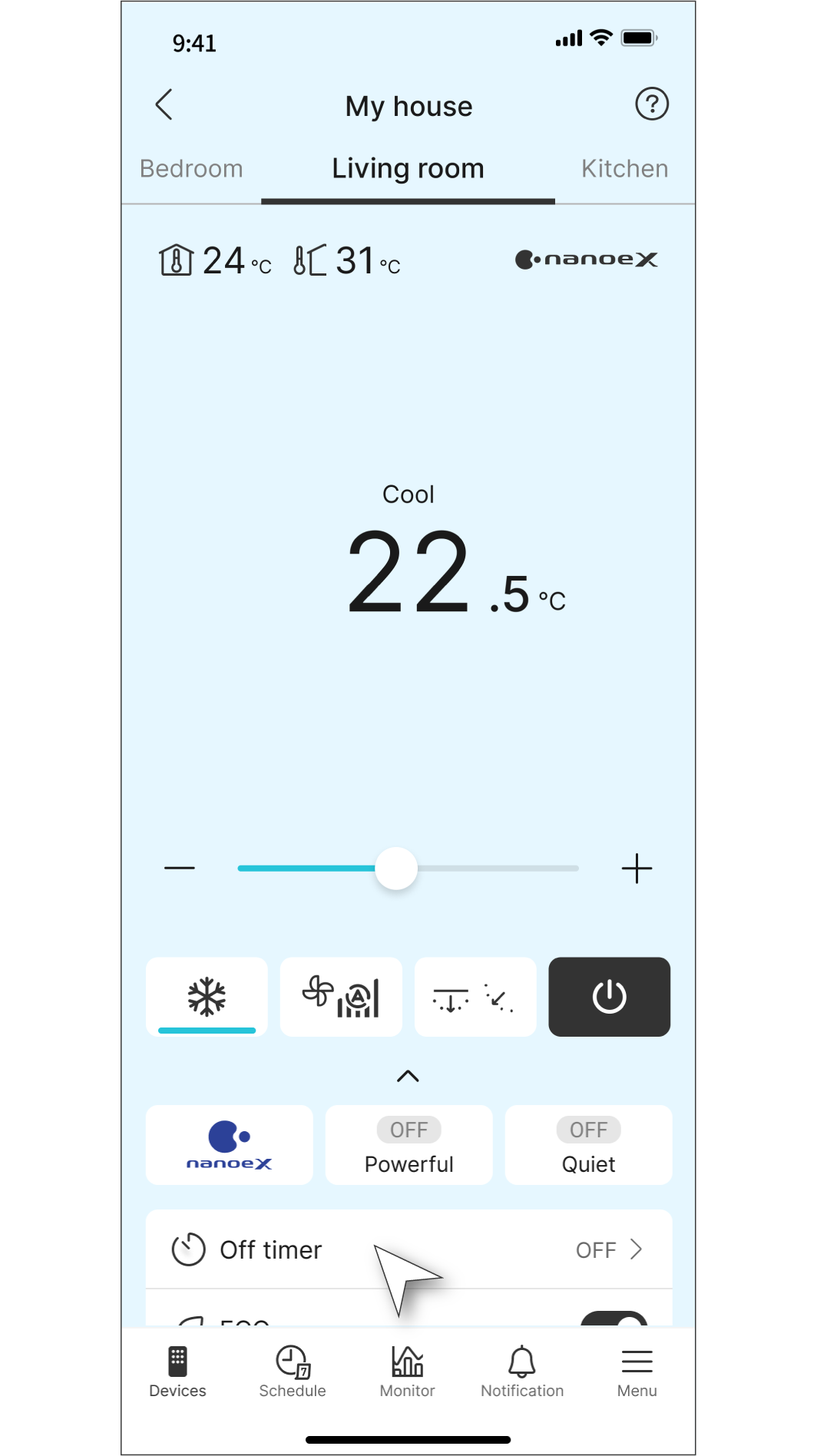
Tap the arrow at the bottom of the screen.
Step 2
Choose ”Off timer”.
Step 3
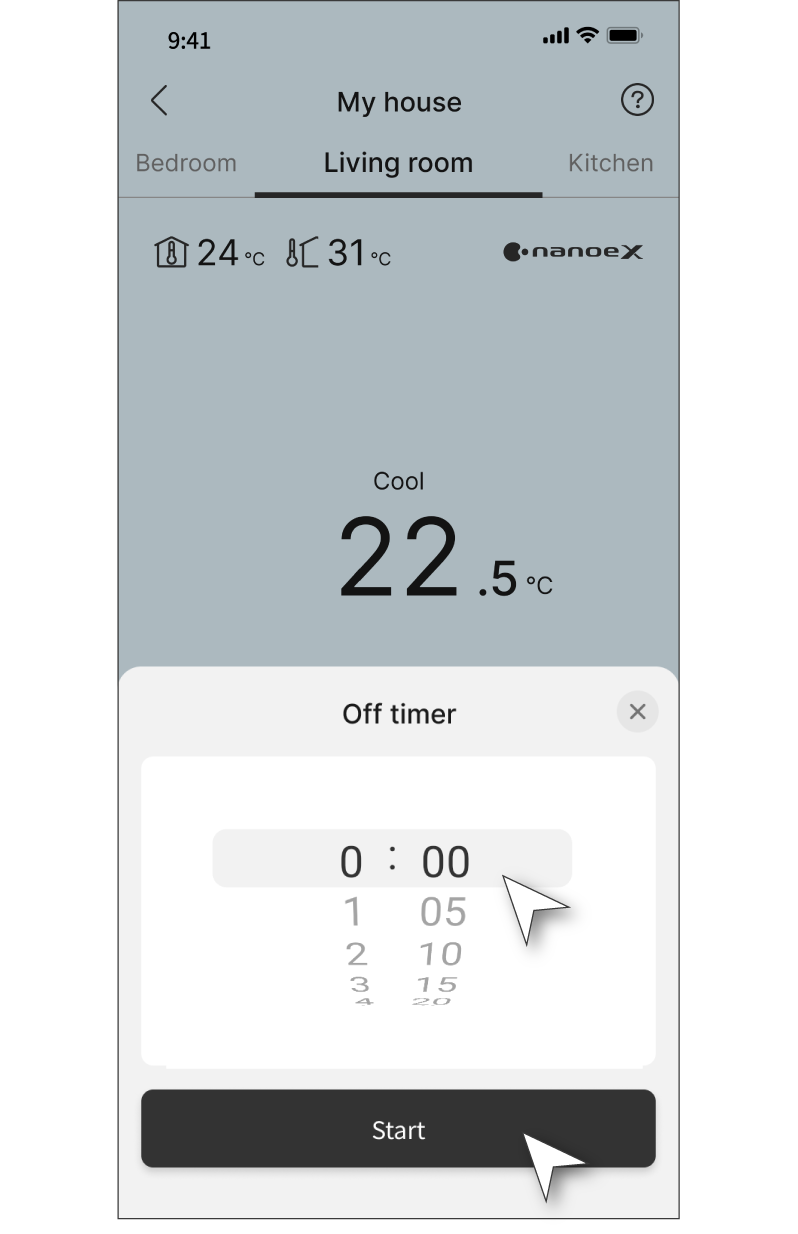
Select how many hours/minutes later to turn off the air conditioner, then tap “Start”.
Disclaimer
Air conditioner needs to be connected to the Panasonic Comfort Cloud App and an internet connection is required.
The images shown are for illustration purposes only. Actual interface may vary depending on the model’s functionality and the version of Comfort Cloud App.

